Customer Support Automation
AI Chatbot for a Website: How a Smart Knowledge-Base Widget Works
We examine the message journey from the on-page window to RAG retrieval and the LLM, custom logic options, design configuration, Widget Key security, and installation on a regular HTML website.
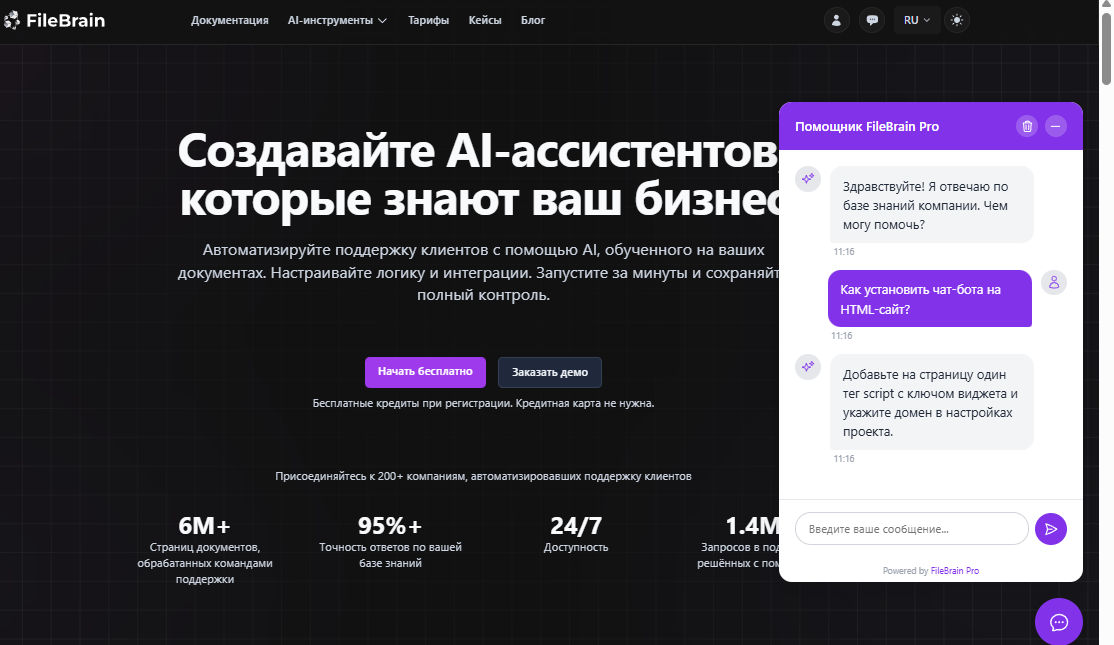
Overview: An AI chatbot for a website is a conversation window inserted into a page with JavaScript. The HTML itself only loads the interface. The message is sent to the server, where a Flow applies conditions, searches the knowledge base, calls the language model, and returns the result. The substantive logic can therefore be changed without editing every page on the site.
What Is an AI Chatbot for a Website?
For a visitor, it is a compact conversation window overlaid on the page. It opens from a button in the bottom corner, displays a greeting, accepts a question, and shows the answer. The person does not need to find a contact form, switch to a messenger, or guess the name of the right section. They can write “How do the plans differ?”, “Is the service suitable for our team?”, or “Where is the integration guide?” just as they would ask an advisor.
The word “AI” describes how free-form text is processed, not how the interface looks. The window may resemble ordinary live chat, but on the server the question is classified, matched against company materials, and passed through a configured Flow. A virtual website advisor can understand different phrasings of the same intent, clarify a missing fact, and prepare an answer from permitted context.
It is important to separate the interface from business logic. The JavaScript chatbot widget creates the button, window, input field, and message history. It passes data to the API and displays the result. Document retrieval, prompts, LLM calls, filters, and routing run on the backend. The knowledge base, model secrets, and internal decision structure are not loaded for the visitor.
This prevents an HTML-site chatbot from turning the page into a complex application. The page retains only a short script inclusion, while the team manages behavior centrally. If plan terms or support rules change, the material and Flow are updated rather than dozens of landing pages. If a new request type appears, a server-side branch is added.
A smart website widget is not limited to FAQs. It can clarify the visitor's goal, identify the topic, recommend a product, link to documentation, or explain what information to prepare for a team member. Every action remains limited by the integration's capabilities and company rules: the model must not promise anything absent from the sources.
How Does an AI Widget Differ from Live Chat?
The same icon in the corner of a page can represent four different approaches. They are not mutually exclusive, but they require different support arrangements. Before choosing a solution, understand who answers, how routing is determined, and where the facts come from.
| Format | How It Answers | Main Limitation |
|---|---|---|
| Live chat | An agent reads the message and writes a reply manually | Queues, working hours, and team labor costs |
| Button-based bot | Displays a menu and follows predefined transitions | A free-form question often does not match the button tree |
| AI advisor | Understands natural language and uses an LLM to compose an answer | Without sources, it may give an unsupported answer |
| Knowledge-base bot | Retrieves company context first and then answers from it | Quality depends on current materials and rules |
Live chat with an agent is indispensable where authority, empathy, and review of a nonstandard situation are required. But a person should not have to send the same link manually hundreds of times. A customer support bot can handle the first line and route requests about a disputed payment, individual contract, or conflict to a team member with context already collected.
A button-based Flow works well for a short process: select a department, leave a number, or open an instruction. Its drawback is the need to anticipate every wording in advance. An AI chatbot for a website lets visitors ask in their own words. Conditions can still use buttons and deterministic branches where flexibility is unnecessary.
Access to a language model alone does not make advice reliable. A general-purpose neural network answering website visitors does not know your current prices, internal procedures, or product updates. A knowledge-base chatbot receives retrieved passages from company materials and answers within their boundaries. The combination of retrieval, a model, and rules creates the practical value.
How the Widget Works: The Message Journey
The process takes only a few seconds from the outside, but internally it consists of clear stages. This view helps with testing: if an answer is wrong, you can inspect the input, retrieved context, prompt, conditions, and output separately.
- The visitor sends a message. The interface stores the conversation identifier and passes the text through the API.
- The widget launches a Flow. The input node writes the question and available context to Flow variables.
- The system retrieves information. RAG Search selects relevant document passages using the configured tags.
- The LLM composes an answer. The model receives the question, retrieved passages, and instructions on style and restrictions.
- Conditions select a branch. The Flow can continue with the answer, ask a follow-up question, or return a safe alternative.
- The result returns to the page. The output node passes the text, and the chat window shows it to the visitor.
In a simple version, the chain is nearly linear: Widget Input → RAG Search → Invoke LLM → Widget Response. A production project adds checks between the steps. An empty question is not sent to the model, refund topics receive a separate route, missing documents lead to an honest refusal, and long text is truncated or normalized before retrieval.
The logic runs asynchronously on the server, not inside the page code. The site owner can therefore change the prompt, sources, and branches without republishing the frontend. The widget provides the convenient interaction: it preserves history, displays processing status, supports a new conversation, and returns the user to unread messages.
What Tasks Can Be Automated?
It is best to start with requests that recur frequently, have a verified source, and produce a clear outcome. If the answer depends on a specialist's decision, automation collects the inputs and hands off the request rather than inventing the final decision.
Answers to Frequently Asked Questions
Working hours, contact methods, delivery, onboarding, supported formats, and registration procedures are usually documented. An AI online advisor retrieves the relevant passage and answers around the clock. This reduces queues and stops team members from repeatedly copying templates.
Product or Service Selection
The visitor describes their goal and constraints in free-form text. The Flow clarifies the budget, category, or required feature, then retrieves suitable descriptions. Accurate selection requires a current catalog and criteria represented in the data. The model explains differences but does not invent availability or prices.
Plans and Commercial Terms
An AI chatbot for a website can compare published plans, explain limits, and link to the payment page. Individual discounts, outcome guarantees, legal interpretation, and refund decisions remain with a team member. The Flow identifies these topics using keywords and conditions.
Documentation Assistance
On a site with dozens of guides, title-based search forces users to know the term in advance. The assistant accepts a description of the problem, finds the relevant section, and gives brief instructions with a link to the complete page. If product versions differ, tags limit retrieval to the right edition.
First-Line Support and Request Clarification
A website chatbot can identify the topic, ask for an order number without unnecessary personal data, determine the product version, and suggest a basic checklist. If that does not help, the specialist receives a more structured request. The user does not have to repeat details already provided.
Navigation and Routing
Not every question needs a long answer. Sometimes the best result is a link to a specific section, an application form, or a department contact. The Flow maps the intent to a route and returns a short action. For urgent or sensitive topics, it immediately explains how to reach a person.
Answers Based on Company Materials
The foundation consists of PDFs, office documents, text files, instructions, and prepared website pages. Materials should contain facts that may be shared with visitors. Internal notes, old price lists, and contradictory versions reduce quality even with a strong model.
RAG retrieval divides sources into meaningful passages and matches questions not only by identical words but also by meaning. If a user writes “How soon can I get started?”, retrieval may find a “connection time” section. The retrieved passages become context for the model. A RAG bot for a website does not need to load the entire document for every request.
Tags help limit the search scope. Materials can be tagged by product, language, audience type, version, or publication status. The same website chatbot widget can be installed on different product pages and passed the relevant tag through a data attribute. A request from product A's landing page will then not rely on instructions for product B.
RAG reduces unsupported answers but provides no absolute guarantee. Three levels of control are needed: clean sources, instructions to answer only from context, and a server-side branch for weak results. When information is not found, a useful answer is “The materials do not confirm this; I'll check with a specialist,” not a plausible guess.
Knowledge updates are continuous. Assign an owner to each information type, remove outdated versions from active retrieval, and review the most common conversations. Logs show how visitors phrase questions and what information they lack. Sometimes a new short instruction improves an answer more effectively than a more complex prompt.
Custom Backend Chatbot Logic
One universal LLM request is a poor representation of real support. A pricing question, technical error, and data-deletion request have different risks and next steps. Widget Flows let you assemble a path from specialized nodes and combine AI capabilities with predictable rules.
- Conditions and filters select a branch from a variable value, topic, or previous-step result.
- Variables preserve the original question, intermediate context, category, and prepared answer.
- Text processing cleans the input, combines values, and prepares data for the next node.
- RAG Search finds suitable passages in the project's knowledge.
- Invoke LLM classifies the request or composes an answer from the prompt and retrieved context.
- Widget Response returns the final message to the linked conversation on the page.
Different Flows do not necessarily mean separate interfaces. One AI website widget can first classify the question and then route it to a sales, documentation, or support branch. Rules are sufficient for greetings and navigation; RAG is needed to retrieve instructions; and an LLM produces a natural answer.
Conditions are particularly useful for restrictions. A branch can stop if a question is empty, too long, or concerns a topic requiring a person. If RAG returns no context, the model is not launched in unrestricted mode. If the answer must follow an exact template, the output receives preapproved text without generation.
This architecture is easier to control. Logs show which nodes ran and at which step the result was produced. The team fixes the specific cause by changing a document, condition, variable, or model instruction instead of trying to cure every error with one enormous prompt.
Appearance Settings
The interface should look like part of the site while remaining noticeable and convenient. FileBrain Pro lets you set parameters in the project settings or override them during integration. One consistent configuration is sufficient for most pages.
Explain the assistant's role and suggest what visitors can ask.
Configure the accent, background, and text colors for visitor and AI messages separately.
Specify image URLs for the assistant and user.
Configure the size and bottom corner: right or left.
System labels are available in Russian or English.
A badge on the button draws attention to a new answer.
Make the greeting specific: “I can help you choose a plan and find instructions” is more useful than an abstract “How can I help?” It sets expectations and increases the chance that the visitor asks an on-topic question. If automation cannot connect to an agent, do not promise “I'll bring in a specialist now” without a real route.
On mobile devices, the window should keep the input accessible and avoid covering important elements. After changing colors, check text contrast; after changing the avatar, check load speed and image quality; after moving it to the left corner, check for conflicts with navigation buttons. Evaluate the design on a real page, not only in the settings form.
How to Add a Chatbot to a Website
Installation requires a FileBrain Pro project with an active configuration. The settings contain a dedicated Widget Key. It is used only by the widget and does not grant access to other APIs. Copy the key, then specify at least one allowed domain: requests are blocked when the domain list is empty.
Next, add the tag before the closing </body> tag or wherever the platform permits JavaScript. The short version looks like this:
<script
  src="https://filebrain.pro/api/widget/v1/fbp-widget.js"
  data-widget-key="wdg_your_widget_key"
></script>
This is standard automatic initialization. The script reads the data attribute, retrieves the server-approved configuration, and creates the interface. To install the chatbot with a different title, color, or position, add the corresponding data attributes. The complete list and fallback URL are published in the JS widget installation documentation.
For programmatic initialization, include the file without a key and create new FileBrainWidget({...}) in your own JavaScript. Use this option when the configuration depends on the page template or loading must occur after a specific event. It requires basic frontend knowledge, but the server-side processing remains unchanged.
Website chatbot integration works wherever JavaScript insertion is permitted: on a regular HTML page, in a custom application, or in a CMS with access to custom code. Some site builders prohibit external scripts on certain plans or strip attributes. In that case, check the platform's rules instead of trying to paste the code into a text editor.
Post-Installation Check
- Open the page in incognito mode and confirm that the button appears.
- Ask a simple question whose answer definitely exists in the knowledge base.
- Test an unknown and prohibited question, as well as reopening the window.
- Check the mobile version and both states: open and collapsed.
- If the window does not appear, open the browser console and check the key, domain, and script availability.
Integration Security
Every value in HTML and client-side JavaScript is accessible to visitors. A Widget Key therefore cannot be treated as a secret equivalent to a server API key. It is deliberately separate from primary keys and works only with interface-specific endpoints. Never place an LLM key, administrator token, or internal secret in data attributes.
Allowed domains restrict where the server accepts requests with a specific Widget Key. Add exact domains and required ports for test environments. An empty list blocks operation completely. If the key appears on another site or in an unwanted repository, rotate it and update the integration.
Shadow DOM isolates the component's styles. The main page's CSS should not accidentally alter the input field, button dimensions, or messages, while component rules should not break the site's layout. This protects against style conflicts, not unauthorized access: the key and domain check still control access.
Test the Flow itself before launch. Try to make the model ignore instructions, request private information, ask an unanswered question, and send unexpectedly long text. Confirm that the internal prompt and service variables are not displayed in chat and that risky topics move to a safe branch.
Define a separate personal-data policy. Do not ask visitors to submit unnecessary information in a free-form field. If support needs an order number or email, explain why and retain only what is necessary. Conversation logs help improve quality, but access and retention periods must also be limited.
Where to Use an AI Widget
Online Stores
The assistant explains features, compares items using a verified catalog, answers delivery questions, and directs visitors to the right category. Current inventory and individual order statuses require a separate data source; they cannot be replaced with the model's general knowledge.
SaaS and IT Products
An AI website chatbot helps select a plan, find instructions, understand an integration, and collect technical context. Tags separate documentation by version and product. Account or billing errors are handed to the team with a description of steps already completed.
Online Schools
Prospective students ask about programs and formats, while current students ask about schedules and access. Public landing pages should use only public materials. Specialized connectors suit Flows requiring learning-platform context; learn more in the articles on an AI bot for GetCourse and Prodamus.XL automation.
Service Companies
The visitor describes the task, receives a list of suitable services, and learns what data is needed for an estimate. A specialist performs complex assessments. This initial conversation reduces requests without context and does not force customers to study the company's internal structure.
Corporate Knowledge
On an internal portal, the interface helps employees find policies and instructions in natural language. Authentication, access separation, and rules for private data are especially important for such a project. Public deployment is unsuitable for staff-only materials.
Extensive Documentation
When help content grows to hundreds of pages, visitors often do not know the exact term. The AI widget understands the task description, gives a brief answer, and points to the primary source. Analysis of unsuccessful queries also shows which documentation sections need improvement.
What Is Needed Before Launch?
Technical installation takes minutes, but preparation determines quality. Before publishing, assign a knowledge owner and a Flow owner. The first is responsible for facts; the second, for routes, restrictions, and log review.
- Prepared knowledge base. Only current documents, without duplicates or contradictory versions.
- Rules and boundaries. Topics that may be answered, mandatory sources, and refusal or escalation cases.
- Greeting message. A brief explanation of capabilities without promising unavailable actions.
- Unknown-question Flow. An honest answer, a useful next step, and a way to contact a person.
- Test conversation set. Common, ambiguous, adversarial, long, and completely undocumented questions.
For a pilot, choose one site section and a limited set of topics. Record the current request volume, first-response time, human-handoff rate, and repeat questions. After launch, evaluate not only the number of conversations but also whether answers are supported, links are useful, and routing is correct.
Review a random sample of conversations. Errors can be divided into four useful types: material is missing, the wrong passage was retrieved, a condition behaved incorrectly, or the LLM violated an instruction. Each type has a specific fix. Continually expanding the general prompt instead of addressing the cause is ineffective.
Roll out gradually: internal review, a test domain, limited public traffic, then the remaining pages. If different sections need different knowledge, use tags and test each configuration separately. Repeat key tests after updating the Flow, especially while Widget Flows are in Alpha.
The FileBrain Pro AI Widget
FileBrain Pro's AI website chatbot combines single-script installation, a configurable interface, project knowledge, and visual Flows. Visitors use a compact window while the team manages the substantive server-side behavior. A simple launch does not require developing a custom chat interface or message transport.
The Flow provides Widget Input and Widget Response, RAG Search, Invoke LLM, conditions, variables, text operations, and debugging. A Flow can be linear or split topics into branches. The current status and recommended starter chain are described in the Widget Flows documentation.
Appearance settings include the title, greeting, colors, avatars, position, button size, Russian or English interface, and unread-message badge. History remains available in the window, while execution logs help explain the request path and improve the materials.
Start with one task, such as documentation answers. Upload current sources, build the input, retrieval, and response chain, add a branch for missing knowledge, and only then expand the logic. This approach reveals real quality faster than trying to automate sales, support, and consultation with one Flow from the outset.
Create an AI Widget for Your Website
Connect company materials, configure your first Widget Flow, and install the chat window on a test page.
Frequently Asked Questions
How do I install an AI chatbot on a website?
Copy the Widget Key from the project, add the domain to the allowlist, and insert the script tag with the data-widget-key attribute on the page. Then verify the display and ask a test question.
Does the widget work on a regular HTML page?
Yes. The page only needs to load external JavaScript. Knowledge retrieval, the model, and rules run on the server, so a separate site backend is not required for a basic installation.
Is a developer required?
Usually not for a simple inclusion. A developer is useful for programmatic initialization, dynamic settings, or CMS restrictions. The visual Flow is assembled without writing server code.
Can the colors and appearance be changed?
Yes. You can configure the title, greeting, message colors, avatars, button size, left or right position, system-label language, and unread-message badge.
Where does the chatbot get its answers?
From the project's materials. RAG finds suitable passages, and the LLM turns them into a clear answer. For reliability, sources must be current and the Flow must handle missing context.
Can I add custom logic?
Yes. A Widget Flow combines conditions, filters, variables, text operations, RAG Search, and Invoke LLM. This gives different topics separate rules and answers.
How is a RAG bot different from ChatGPT?
A RAG bot first retrieves information from the selected company knowledge base and passes it to the model with rules. A general-purpose chat without that connection does not know your current internal documents, plans, or procedures.
Is it safe to place the key in HTML?
The Widget Key is visible in client-side code, so it is separately restricted to widget endpoints. Allow only your own domains, never insert server secrets, and rotate the key if it is compromised.
Can the widget be used on multiple domains?
Yes. Add every site to the allowed-domain list. An unauthorized origin cannot use the key for requests. Test domains and ports must also be added explicitly.